Beginner Arduino Projects
Arduino 4×4 Matrix Keypad Interfacing
Try it yourself
Open the live circuit and code — run it right in your browser.
You'll be asked to sign in first — it's free.
🎯 Aim
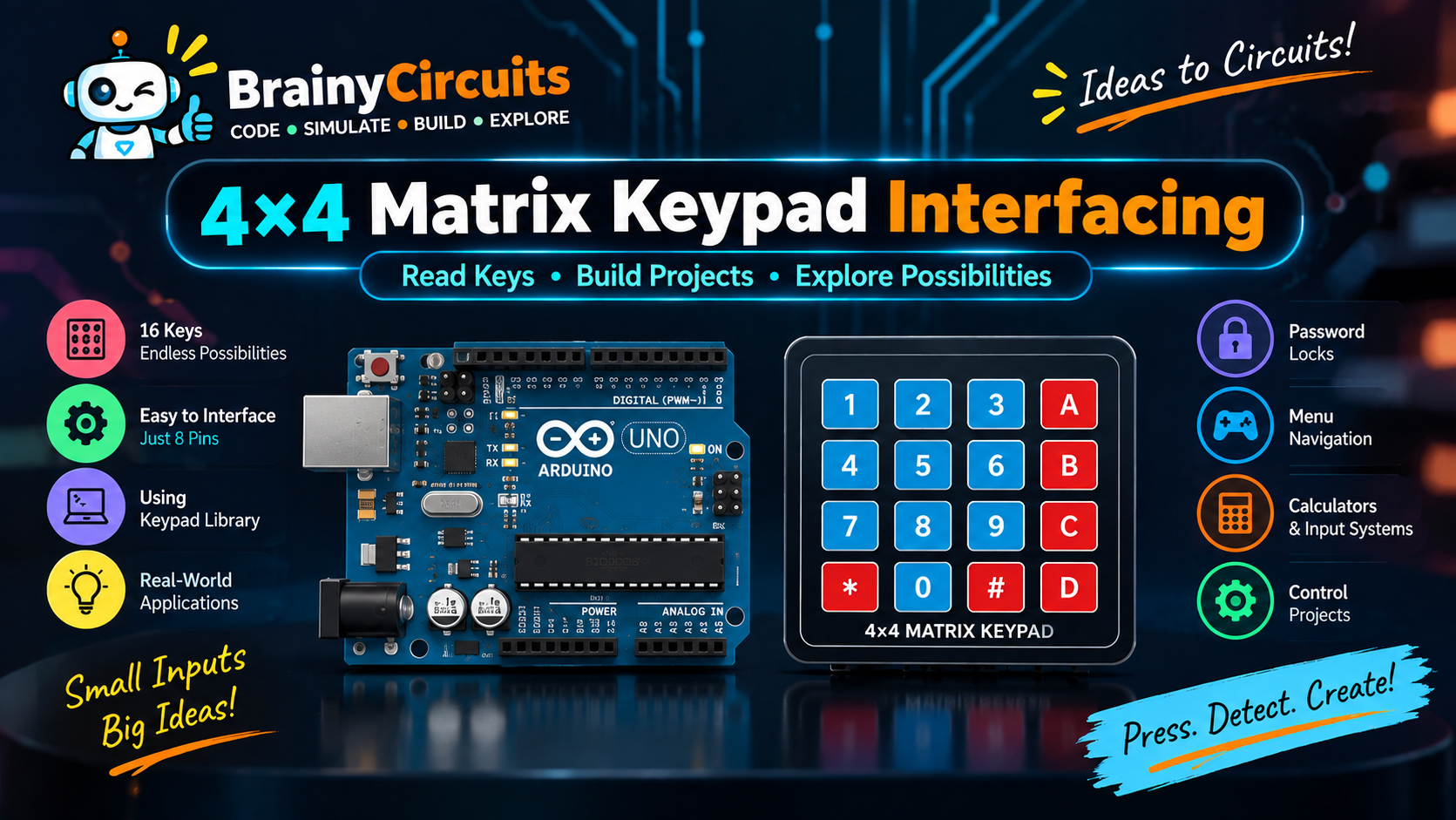
Learn how to interface a 4×4 matrix keypad with an Arduino Uno and detect which key is pressed. This project demonstrates how matrix keypads reduce the number of Arduino pins required to interface multiple buttons and how the Keypad library makes keypad scanning simple.
📖 Background Story
What if you need 16 buttons but don't want to use 16 Arduino pins?
A 4×4 matrix keypad provides a clever solution.
Instead of giving every button its own Arduino input, the 16 keys are arranged in 4 rows and 4 columns. The Arduino scans the rows and columns to determine which key is being pressed.
That means a 4×4 keypad requires only:
4 row connections + 4 column connections = 8 Arduino pins
instead of 16 separate input pins.
In this project, you'll connect a 4×4 matrix keypad to an Arduino Uno and use the Keypad library to detect and display the pressed key through the Serial Monitor.
Key Features
🔢 16 individual keys
⌨️ 4×4 matrix arrangement
🔌 Uses only 8 Arduino digital pins
📚 Uses the Arduino Keypad library
📟 Displays pressed keys on Serial Monitor
🧠 Demonstrates matrix scanning
💻 Fully simulated in Brainy Circuits
🚀 Foundation for password locks, calculators, menus and control panels
🧰 Components Used
- ● Arduino Uno R3
- ● 4×4 Matrix Keypad
🔌 Circuit Diagram
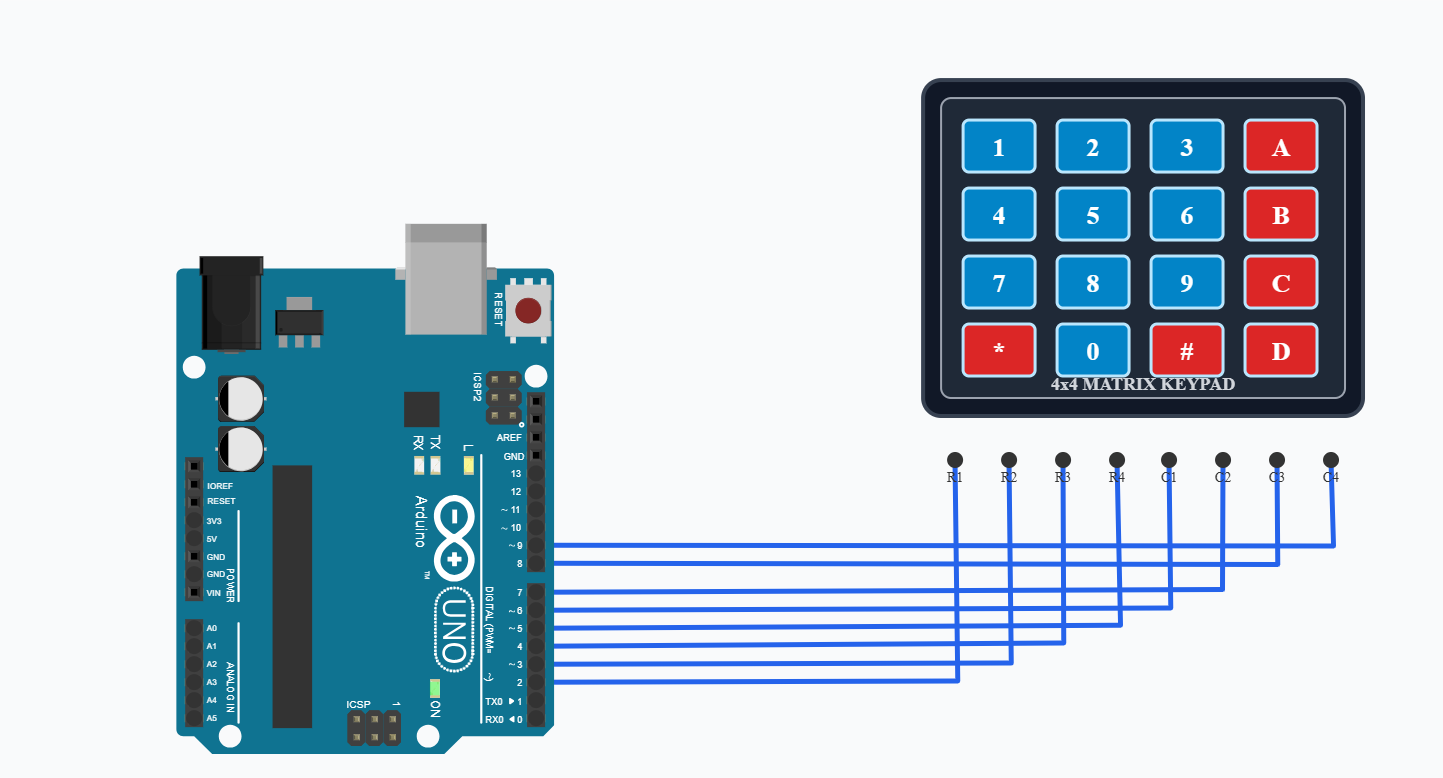
The keypad has eight connections:
4×4 Keypad Arduino Uno
R1 ──────────── D2
R2 ──────────── D3
R3 ──────────── D4
R4 ──────────── D5
C1 ──────────── D6
C2 ──────────── D7
C3 ──────────── D8
C4 ──────────── D9
No separate VCC or GND connection is required for the standard passive matrix keypad.
💻 Code
// Keypad layout
char keys[4][4] = {
  {'1', '2', '3', 'A'},
  {'4', '5', '6', 'B'},
  {'7', '8', '9', 'C'},
  {'*', '0', '#', 'D'}
};

// Arduino pins connected to R1, R2, R3, R4
byte rowPins[4] = {2, 3, 4, 5};

// Arduino pins connected to C1, C2, C3, C4
byte colPins[4] = {6, 7, 8, 9};

// Create keypad object
Keypad keypad = Keypad(
  makeKeymap(keys),
  rowPins,
  colPins,
  4,
  4
);

void setup() {
  Serial.begin(9600);
  Serial.println("4x4 Keypad Ready");
  Serial.println("Press any key...");
}

void loop() {
  char key = keypad.getKey();

  if (key) {
    Serial.print("Key Pressed: ");
    Serial.println(key);
  }
}
💬 Comments (0)
Sign in to leave a comment.
Be the first to comment on this project.