Beginner Arduino Projects
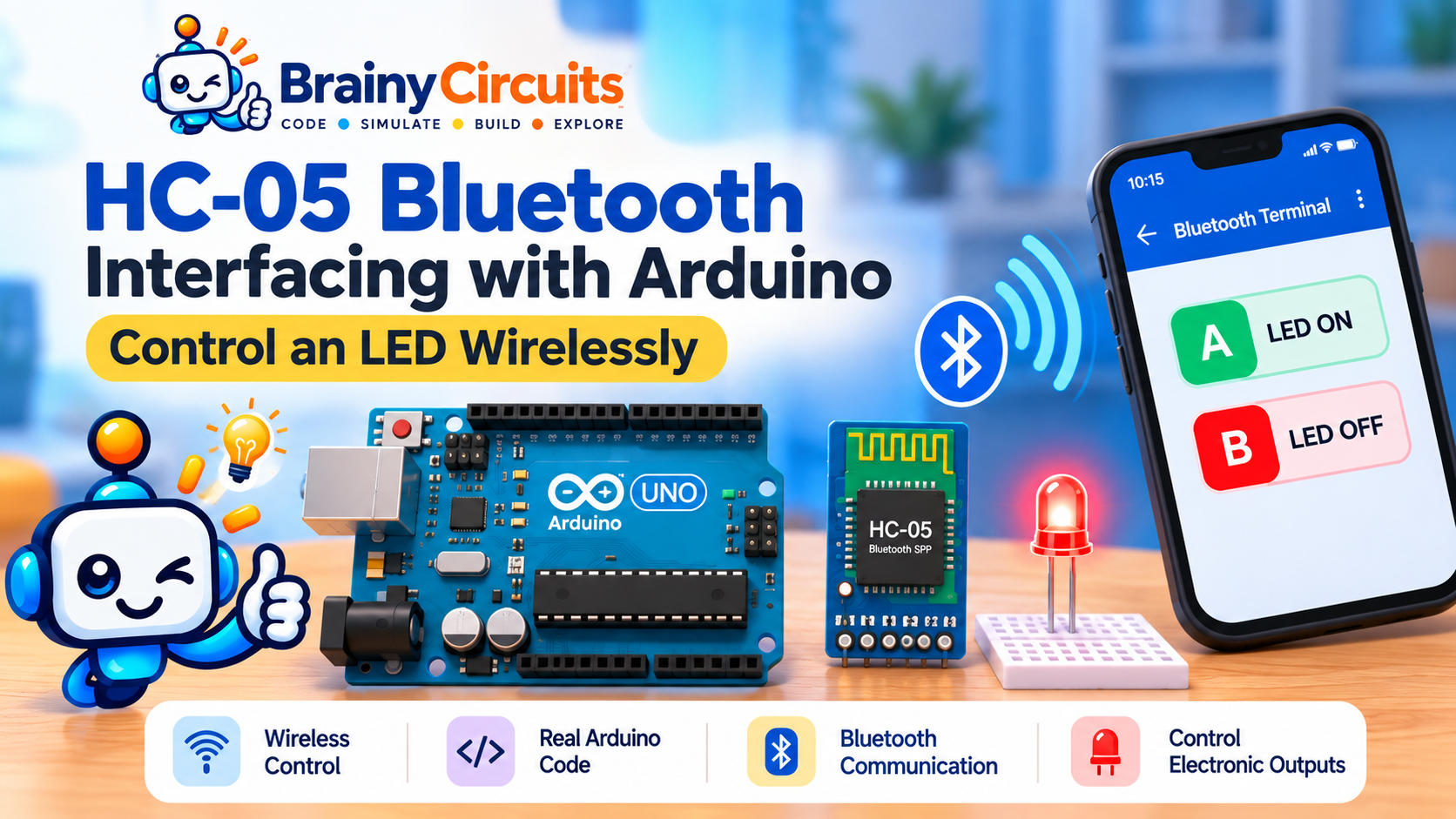
HC-05 Bluetooth Interfacing with Arduino – Control an LED Wirelessly
Try it yourself
Open the live circuit and code — run it right in your browser.
You'll be asked to sign in first — it's free.
🎯 Aim
Learn how to interface an HC-05 Bluetooth module with Arduino Uno and control an LED wirelessly by sending commands from a Bluetooth terminal. In this project, we will send: A → Turn the LED ON B → Turn the LED OFF The project demonstrates how Arduino can receive data wirelessly through Bluetooth and use that data to control an electronic output.
📖 Background Story
Bluetooth makes it possible for Arduino projects to communicate wirelessly with computers, smartphones, and other devices.
The HC-05 Bluetooth module is commonly used with Arduino for Bluetooth Serial communication. It provides a wireless serial link between Arduino and a paired Bluetooth device.
Instead of physically pressing a button connected to Arduino, we can send a character such as A from a Bluetooth terminal. Arduino receives that character through its serial interface and performs an action.
This simple idea is the foundation for many larger projects such as:
Bluetooth-controlled robots
Wireless LED control
Smart home systems
Bluetooth-controlled cars
Remote sensor monitoring
Wireless appliances
Mobile-controlled Arduino projects
In Brainy Circuits, you can experiment with this communication virtually before building the circuit with physical hardware.
🧰 Components Used
- ● Arduino Uno R3
- ● HC-05 Bluetooth Module
- ● LED Output indicator
- ● 220Ω Resistor
- ● Connecting wires
🔌 Circuit Diagram
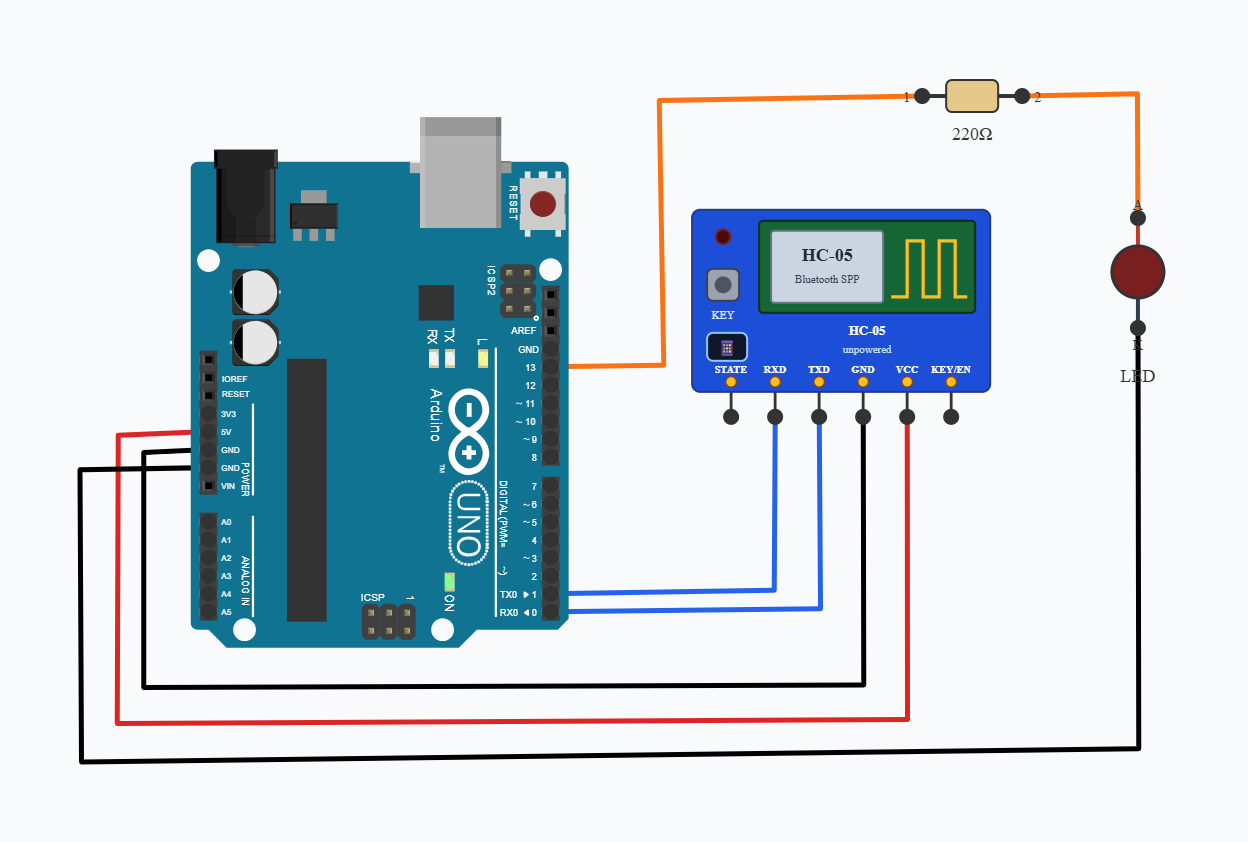
Connect the HC-05 TXD to Arduino RX (D0), HC-05 RXD to Arduino TX (D1), VCC to 5V and GND to GND. Connect Arduino digital pin 13 to an LED through a 220Ω resistor, with the LED connected to GND. Send A through Bluetooth to turn the LED ON and B to turn it OFF.
💻 Code
const int LED_PIN = 13;

void setup() {
  pinMode(LED_PIN, OUTPUT);

  // Start Bluetooth/Serial communication
  Serial.begin(9600);

  digitalWrite(LED_PIN, LOW);
}

void loop() {

  if (Serial.available() > 0) {

    char received = Serial.read();

    if (received == 'A') {
      digitalWrite(LED_PIN, HIGH);
    }

    else if (received == 'B') {
      digitalWrite(LED_PIN, LOW);
    }
  }
}
💬 Comments (0)
Sign in to leave a comment.
Be the first to comment on this project.