Beginner Arduino Projects
Arduino IR Remote Control with TSOP1738
Try it yourself
Open the live circuit and code — run it right in your browser.
You'll be asked to sign in first — it's free.
🎯 Aim
Learn how to interface a TSOP1738 IR receiver with an Arduino Uno and use a virtual IR remote control to wirelessly send commands to the Arduino. The project demonstrates how infrared remote controls communicate using coded IR signals and how the Arduino can decode those signals using the IRremote library.
📖 Background Story
Have you ever wondered how your TV remote can control a television without any wires?
An infrared remote control sends invisible infrared light pulses toward a receiver. These pulses are modulated and encoded into a digital communication protocol. The TSOP1738 receives the infrared signal, filters and demodulates it, and produces a digital pulse signal that an Arduino can process.
In this project, we recreate that process virtually.
Instead of using a physical IR remote, you can click buttons on the virtual IR remote inside Brainy Circuits. The remote sends an IR command to the TSOP1738, which passes the decoded signal to the Arduino.
This provides a simple way to experiment with wireless control without needing a physical remote, IR receiver, or additional hardware.
Key Features
📡 Wireless infrared communication
🔴 TSOP1738 38 kHz IR receiver
🎮 Virtual IR remote control
🔢 Multiple remote-control buttons
📟 Arduino Serial Monitor output
🧩 Compatible with the Arduino IRremote library
⚡ Demonstrates real IR pulse-based communication
🧠 Learn about IR protocols and command decoding
💻 Completely simulated in the browser
🧰 Components Used
- ● Arduino Uno R3
- ● TSOP1738 IR Receiver
- ● IR Remote Control
🔌 Circuit Diagram
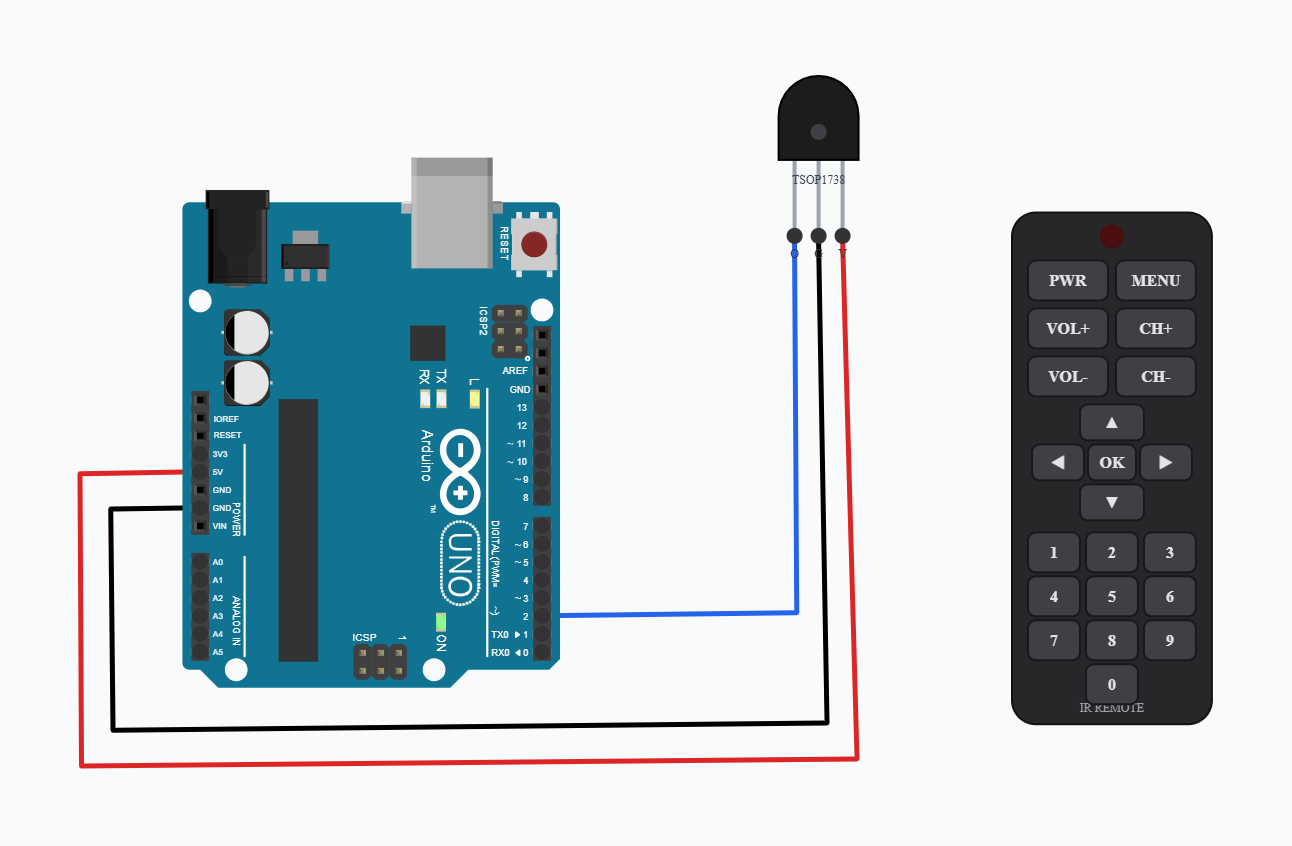
The virtual IR remote does not require an electrical connection to the Arduino or TSOP1738.
When a button on the virtual remote is pressed, it transmits an infrared command through the simulated wireless IR channel. The TSOP1738 receives the signal and produces a digital output on its OUT pin.
The Arduino reads this signal on Digital Pin 2.
Important
The IR remote and TSOP1738 communicate wirelessly. There should be no circuit wire between them.
The remote does not simply send a HIGH or LOW signal.
Instead, the remote sends coded infrared pulses, typically using a carrier around 38 kHz for this type of receiver.
The TSOP1738 detects the modulated infrared signal, filters the carrier and produces a demodulated digital pulse train.
The Arduino then uses the timing and protocol information to determine which button was pressed.
Once programmed Open the Serial Monitor and click different buttons on the virtual IR remote.
You should see output similar to:
IRremote Receiver Ready
Press a button...
Protocol: NEC
Address: 0x0
Command: 0x45
Raw Data: 0xBA45FF00
--------------------
Press another button and the command should change.
Protocol: NEC
Address: 0x0
Command: 0x40
Raw Data: 0x...
--------------------
💻 Code
#define IR_RECEIVE_PIN 2

void setup() {
  Serial.begin(9600);

  IrReceiver.begin(IR_RECEIVE_PIN, ENABLE_LED_FEEDBACK);

  Serial.println("IRremote Receiver Ready");
  Serial.println("Press a button...");
}

void loop() {

  if (IrReceiver.decode()) {

    Serial.print("Protocol: ");
    Serial.println(IrReceiver.getProtocol());

    Serial.print("Address: 0x");
    Serial.println(IrReceiver.decodedIRData.address, HEX);

    Serial.print("Command: 0x");
    Serial.println(IrReceiver.decodedIRData.command, HEX);

    Serial.print("Raw Data: 0x");
    Serial.println(IrReceiver.decodedIRData.decodedRawData, HEX);

    Serial.println("--------------------");

    IrReceiver.resume();
  }
}
💬 Comments (0)
Sign in to leave a comment.
Be the first to comment on this project.