Beginner Arduino Projects
Arduino Push Button Interfacing – Control an LED
Try it yourself
Open the live circuit and code — run it right in your browser.
You'll be asked to sign in first — it's free.
🎯 Aim
Learn how to interface a push button with an Arduino Uno, read a digital input, and control an LED based on whether the button is pressed. The project also demonstrates how to use the Arduino's internal pull-up resistor and display a message on the Serial Monitor.
📖 Background Story
Push buttons are one of the simplest ways for a person to interact with an electronic circuit. A button can be used to start an action, turn something on or off, select an option, or provide an input to a microcontroller.
In this project, we connect a push button to an Arduino Uno and use it to control an LED.
The push button is connected to Arduino digital pin 2, while the built-in LED on the Arduino Uno is controlled through digital pin 13.
When the button is pressed, the Arduino detects a LOW signal on pin 2. It then turns the LED on and prints "Button Pressed!" to the Serial Monitor.
When the button is released, the Arduino turns the LED off.
The project also demonstrates an important Arduino technique: using a digital input with a pull-up resistor.
Instead of allowing the input pin to remain electrically undefined when the button is not pressed, the pull-up keeps the input HIGH. Pressing the button connects the input to GND, causing the Arduino to read LOW.
This creates a simple and reliable active-low button circuit.
Understanding digital inputs and buttons is an important first step toward building interactive Arduino projects. The same concept can later be used with switches, keypads, sensors, menu controls, alarms, and many other input devices.
🧰 Components Used
- ● Arduino Uno R3
- ● Push Button
- ● LED
- ● 220Ω Resistor
🔌 Circuit Diagram
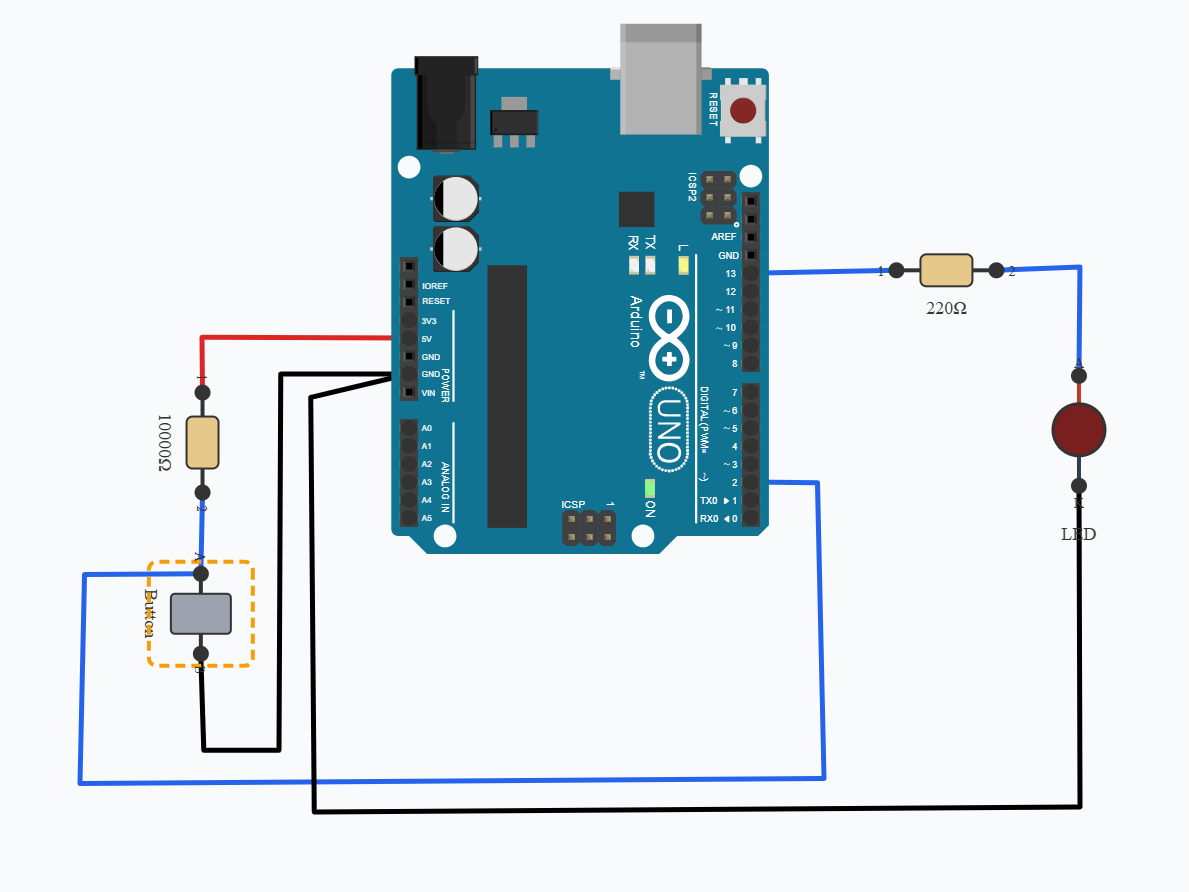
Connect the push button to Arduino digital pin 2.
The button input is configured using the Arduino's internal pull-up, so the input normally remains HIGH. When the button is pressed, the input is connected to GND and Arduino pin 2 reads LOW.
The LED is connected to Arduino digital pin 13 through a 220Ω resistor. The resistor limits the current flowing through the LED.
The circuit therefore works as follows:
Button released → D2 = HIGH → LED OFF
Button pressed → D2 = LOW → LED ON
💻 Code
void setup() {
      pinMode(13, OUTPUT);
      pinMode(2,INPUT);
      digitalWrite(2,HIGH);
      Serial.begin(9600);
}


void loop() {
      if(digitalRead(2)==LOW)
      {
        digitalWrite(13,HIGH);
        Serial.println("Button Pressed!");
        while(digitalRead(2)==LOW);
      }
      else{
        digitalWrite(13,LOW);
      }
}
💬 Comments (0)
Sign in to leave a comment.
Be the first to comment on this project.